Image Optimization Problems
If you're having trouble with Image Optimization, check one of the common issues below.
Failed to retrieve images for optimization
There are a few reasons why QUIC.cloud may be unable to grab your images to optimize them:
- QUIC.cloud service IP addresses are blocked at the server or application level
- Your Server IP is incorrect in the LiteSpeed Cache plugin, on the QUIC.cloud Dashboard, or in the DNS Zone
Here's how to check for each of these issues.
Blocked QUIC.cloud IPs
If QUIC.cloud's IPs are being blocked by a firewall, the Image Optimization service would be unable to retrieve your images.
Make sure QUIC.cloud's IP addresses have been added to any application-level or server-level firewalls you or your hosting provider have in place. Learn more.
Incorrect Server IP
Your WordPress installation's Server IP may not match the DNS Zone's A records or your origin server.
Check all of the places where a Server IP address is configured:
- The LiteSpeed Cache plugin: navigate to the General section and look at the Server IP setting. Verify that value matches your origin server.
- The QUIC.cloud Dashboard: navigate to My Domains > [example domain] > Settings and verify that the Server IP setting matches your origin server
- QUIC.cloud DNS (if your domain uses it): navigate to DNS Zones > [example domain], and verify that all
Arecords have the correct IP address configured.
Sync the server configuration:
- From the LiteSpeed Cache plugin, navigate to Dashboard > QUIC.cloud Service Usage Statistics and click Sync.
Check HTTP response codes
If you are experiencing image optimization problems, you can check your QUIC.cloud Dashboard to see HTTP Response codes that may help.
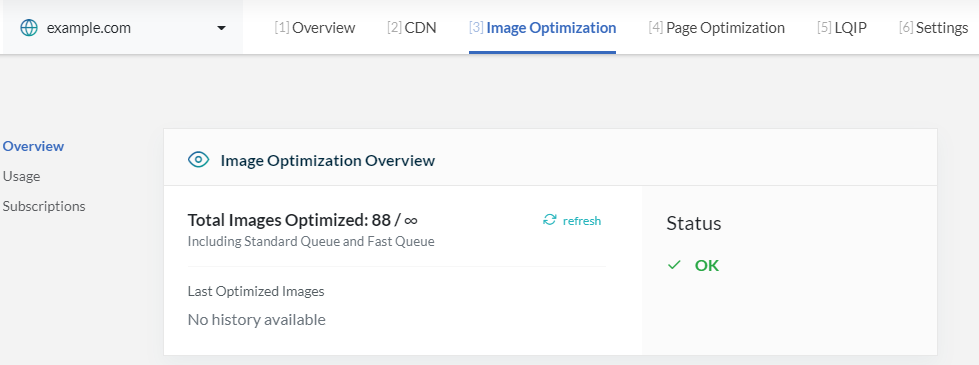
Navigate to Image Optimization and you will see information about your domain's requests.
If there are no errors displayed in the Status area, the problem may not be on the QUIC.cloud side. In that case, you can see our WordPress plugin's comprehensive image optimization troubleshooting documentation.
If there is an error message, it will indicate the HTTP response code that our image optimization servers received when attempting to fetch your image. Depending on the response code, you will have to apply some fixes to get it working properly.
For example, a 404 error code means that QUIC.cloud could not find the image. In that case, you would first verify whether the image exists at the given path, and go from there.
Additional help
If you've gotten this far and are still having trouble, our support team can help. Before you open a ticket, though, please grab your Report Number from the LSCWP plugin, so we can know more about your WordPress configuration.